
Captcha
Captcha feature is available for all Patchstack paid plan users.
Protection is available for WordPress sites only.
Captcha is a powerful tool for protecting your website against spambots.
With Patchstack, you can integrate captcha solutions easily into your WordPress sites.
To manage your site’s captcha settings, navigate to Sites > yourdomain.com > Hardening > Captcha in Patchstack App.
Patchstack offers two captcha solutions:
- Google reCAPTCHA
- Cloudflare Turnstile
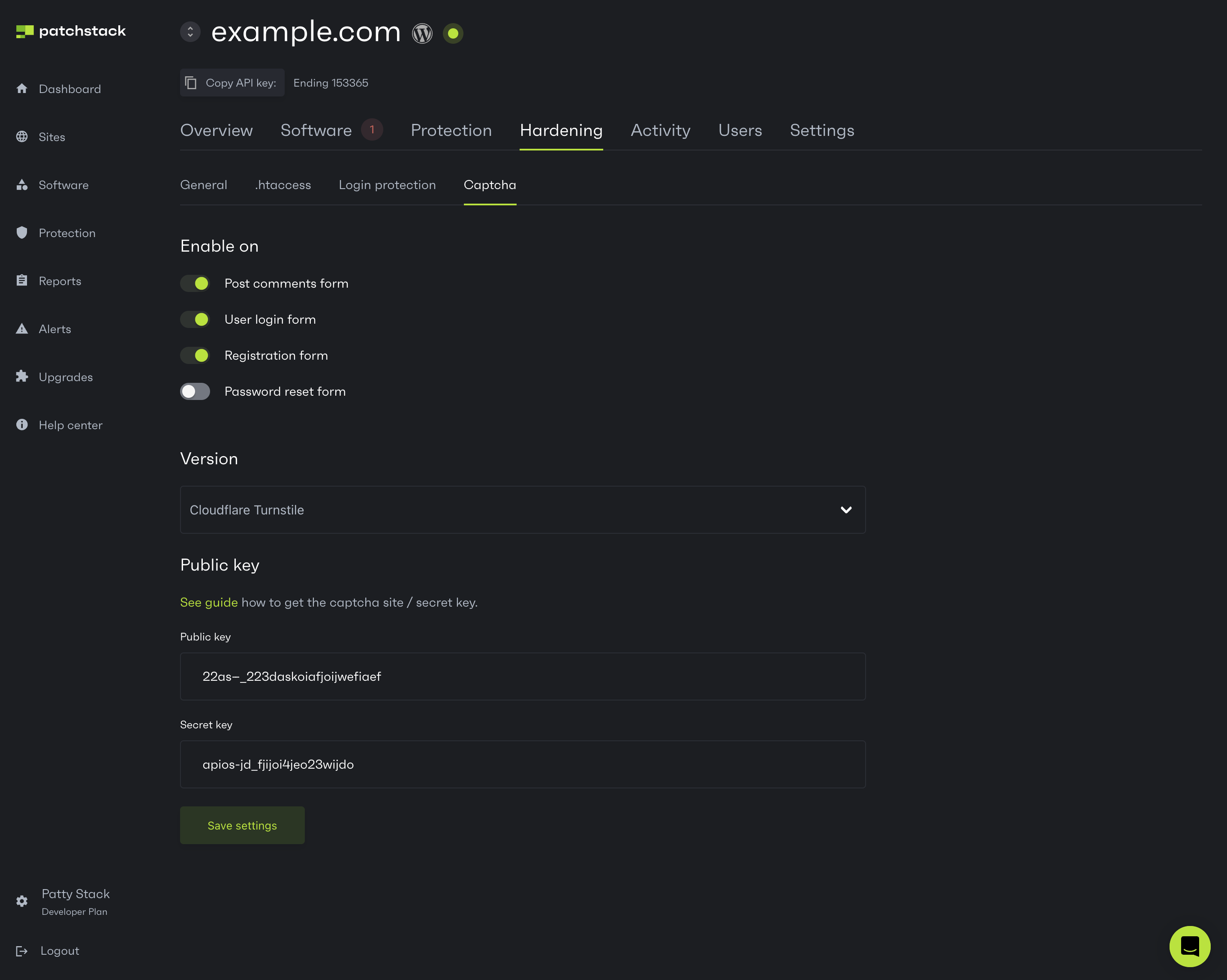
Our captcha can be used on the WordPress built-in forms as well as WooCommerce forms. The WordPress built-in forms are:
- Commenting forms
- Login form
- Registration form
- Password reset form
In addition, CAPTCHA is supported on WooCommerce login, registration and lost-password forms. On multisite, the registration setting also covers the public wp-signup.php signup flow.
These settings apply to the supported forms when they are submitted. They do not add CAPTCHA to XML-RPC, REST authentication or another plugin’s custom form. Use the separate XML-RPC, login-ban and 2FA controls for those paths as appropriate.
For reCAPTCHA v3, the response must be successful, have the expected submit action and meet the default score threshold of 0.5. A site integration can adjust the score threshold through the patchstack_recaptcha_v3_threshold WordPress filter.
Configure the reCAPTCHA v3 score threshold
Section titled “Configure the reCAPTCHA v3 score threshold”To use a minimum score of 0.7, add this PHP code to a must-use plugin, normally wp-content/mu-plugins/patchstack-customizations.php:
<?phpadd_filter( 'patchstack_recaptcha_v3_threshold', function ( $threshold ) { return 0.7;} );The default is 0.5. Return a number between 0 and 1; higher values are stricter and can reject more legitimate submissions. This applies to reCAPTCHA v3 only. See WP filters for code placement on custom layouts and the other configuration hooks.
NB! Patchstack does not offer captcha integrations for other third-party plugins or themes (eg. Contact Form 7).
To activate captcha on your site, you will have to generate a public key and secret key first. The tutorials for creating captcha keys and integrating them with Patchstack can be found below.
Coverage boundaries
Section titled “Coverage boundaries”CAPTCHA is a check on the supported forms above, not a general request throttle. XML-RPC, REST/API logins, application-password authentication, custom third-party forms and programmatic account creation do not gain a Patchstack CAPTCHA merely because a CAPTCHA option is on. This is intentional compatibility behavior.
The 2FA code throttle and optional login IP ban have separate coverage. See supported authentication paths and security reports for the complete distinction.
Setting up Google reCAPTCHA
Section titled “Setting up Google reCAPTCHA”You can choose whether to use reCAPTCHA v2 or reCAPTCHA v3.
Find information about different reCAPTCHA versions here!
Here is a tutorial how to generate those.
To set up Google reCAPTCHA:
- Login into your Google account at Google.com
- Go here: https://www.google.com/recaptcha/admin/create
- In the label, enter your site name
- Check reCAPTCHA v2 OR reCAPTCHA v3 depending on which reCAPTCHA version you want to use. The reCAPTCHA v3 feature is only available in our plugin version 1.3 and up
- In the domains field, enter your domain(s)
- Check the checkbox to agree to the terms
- Click on Register
- You will now see the Site key and Secret key which you will need to copy over to our plugin, then save the settings on the settings page
Once the keys have been generated, insert them to the Patchstack App and click Save settings.
Setting up Cloudflare Turnstile
Section titled “Setting up Cloudflare Turnstile”To set up Cloudflare Turnstile:
- Choose Cloudflare Turnstile from the versions list of captchas in Patchstack App.
- Log in to Cloudflare: https://dash.cloudflare.com/login
- In the navigation menu on the left, click “Turnstile”
- Click on “Add Site”
- Add your site name, and the domain name which you want to run the Turnstile on
- Click Create
- The site key and secret key will be shown on the screen
- Copy these keys over to the fields on the Patchstack App > yoursite.com > Hardening > Captcha page
- Click Save settings
After all the changes, click on Save settings.