
Additional settings
Additional protection settings are available for all Patchstack paid plan users.
Protection settings and modules are available for WordPress sites only.
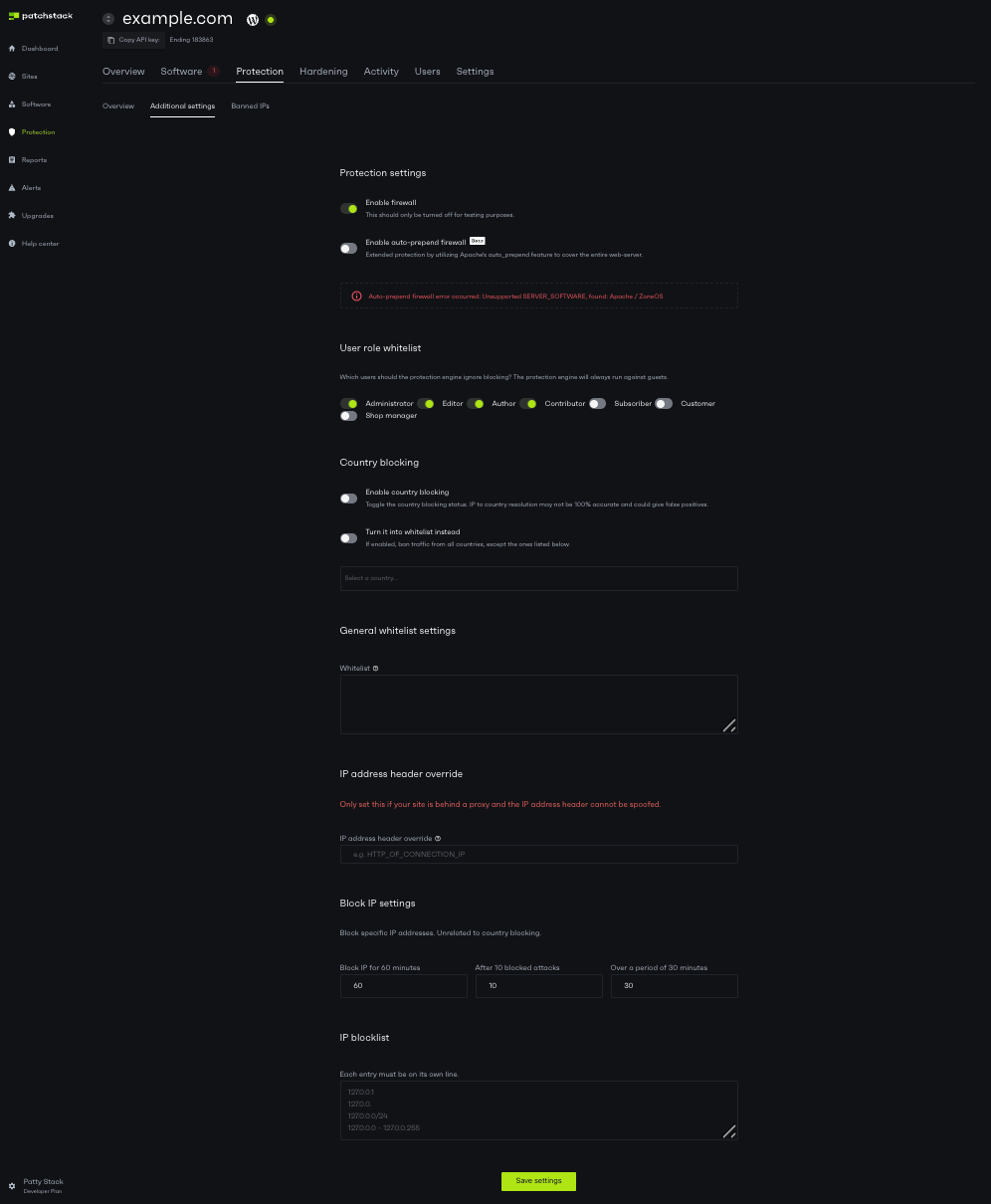
The Additional settings subpage is found at Sites > yoursite.com > Protection > Additional settings in Patchstack App.
Additional settings features
Section titled “Additional settings features”Protection settings
Section titled “Protection settings”Enable firewall - this toggle enables or disables Patchstack’s firewall. When turned off, your site won’t be protected by virtual patches or firewall rules. However, other security measures (such as IP bans and .htaccess rules) will remain active. We recommend disabling the firewall only for testing purposes.
Enable auto-prepend firewall - this beta feature configures PHP’s auto_prepend_file to inspect supported PHP requests before WordPress loads, including scripts outside WordPress core. Automatic installation supports compatible Apache 2.4 and LiteSpeed environments; its reach depends on the PHP and directory configuration. On multisite, the primary site of the primary network controls installation and removal of the shared server configuration. Subsites can refresh their own rules in an existing installation.
Firewall log redaction
Section titled “Firewall log redaction”We recommend enabling Redact firewall logs on sites that handle sensitive personally identifiable information (PII), passwords, tokens or confidential form submissions. If a legitimate request is blocked by mistake, its submitted values could otherwise be recorded in the firewall logs.
To enable it, open Sites > yoursite.com > Protection > Additional settings, turn on Redact firewall logs and save the settings. This feature requires plugin 2.3.8 or newer and is off by default. Its plugin option is patchstack_log_redaction.
Blocked requests are still recorded, with these changes:
- The submitted form data and raw request body are replaced with
{"redacted":true}. - The query string is removed from the logged URL. For example,
/wp-login.php?log=admin&pwd=secretis recorded as/wp-login.php.
This applies when new firewall entries are recorded locally and when older queued entries are sent to Patchstack. It changes logging only; the firewall still inspects the request normally.
IP addresses, URL paths, user-agent strings, request methods, timestamps and rule identifiers remain in the log. These can still contain personal information. This setting covers blocked-request firewall logs; activity logs and your host’s access/error logs are separate.
Enabling redaction does not bulk-rewrite historical local rows or previously uploaded logs. Older queued entries are redacted before upload, but their original local records can remain until normal processing or cleanup removes them. See local log retention.
Redacted entries no longer show the payload that triggered the block, and App alert rules that match on that payload will not fire for those entries.
Redaction is irreversible for the affected fields. If a legitimate request is blocked while redaction is enabled, its original form data, raw body and query string cannot be recovered from the redacted Patchstack log entry. Turning redaction off later does not restore that data. Investigating the false positive may therefore require reproducing the request.
See WP options for configuration and defaults.
User role whitelist
Section titled “User role whitelist”The user role whitelist exempts selected roles from firewall rules that respect that whitelist. Some rules can still apply to whitelisted roles, and checks that run before WordPress identifies the current user cannot use its role. To configure the whitelist:
- Navigate to your sites’ Protection > Additional settings page in Patchstack App
- Look for the User role whitelist section
- Toggle the roles, that you wish to whitelist
- Click Save settings once the changes have been done.
General whitelist settings
Section titled “General whitelist settings”Under the General whitelist settings section, you can manage whitelist settings and add IP address header override rule.
📘 Whitelist
Section titled “📘 Whitelist”Each rule must be on a new line.
The following keywords are accepted
IP:IPADDRESS
PAYLOAD:someval
URL:/someurlDefinitions
IP = firewall will not run against the IP
PAYLOAD = if the entire payload contains the keyword, the firewall will not proceed
URL = if the URL contains given URL, firewall will not proceedExample
IP:192.168.1.1
PAYLOAD:contact_form
URL:water
URL:/some-formIn this scenario, the firewall will not run if the IP address is 192.168.1.1 or if the payload contains contact_form or if the URL contains water or if the URL contains /some-form.
📘 IP Address Header Override
Section titled “📘 IP Address Header Override”If you would like to override the IP address header that we use to grab the IP address of the visitor, enter the value to IP Address Header Override input.
This must be a valid value in the $_SERVER array, for example HTTP_X_FORWARDED_FOR. If the $_SERVER value you enter does not exist, it will fallback to the Patchstack IP grab function so ask your hosting company if you are unsure.
Leave this empty to use the Patchstack IP address grabbing function.
Block IP settings
Section titled “Block IP settings”In this section, you can Block IPs that are a potential threat to your sites.
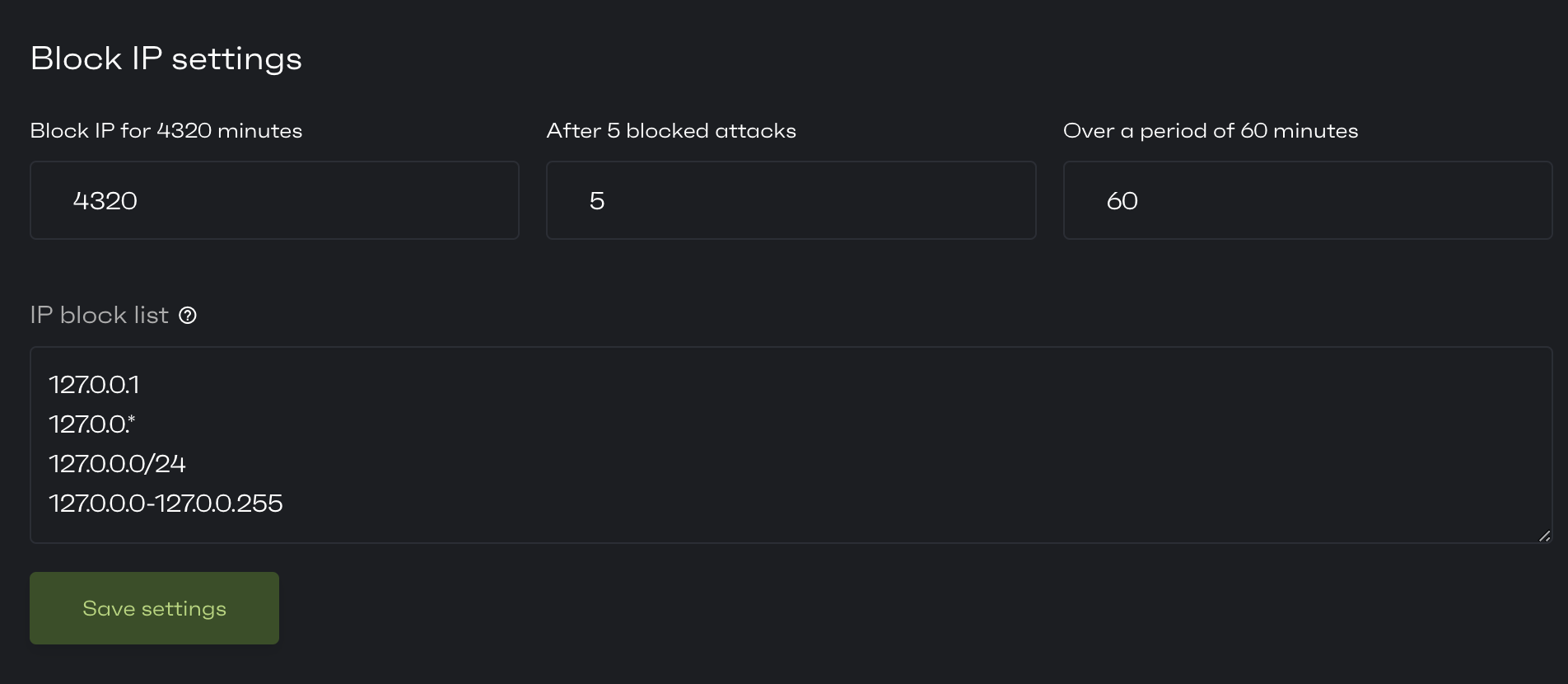
🚧 Example case:
Section titled “🚧 Example case:”Patchstack has blocked 5 attacks on your site from one specific IP address in a period of 60 minutes.
You would now want this IP to be blocked.Type in the following data:
Block IP for 4320 Minutes
After 5 Blocked Attacks
Over A Period of 60 MinutesClick Save Settings
Now - any IP address which meets all those conditions will be blocked for three days.
Genuine WordPress cron execution is exempt from automatic firewall IP bans so scheduled jobs can still run. Its request is still inspected against firewall rules; a request parameter named
doing_wp_crondoes not grant this exemption. The manual IP block list is separate.
📘 IP Block List
Section titled “📘 IP Block List”Lets you completely block IP addresses by entering each IP address to a new line.
Following formats are accepted:
127.0.0.1
127.0.0.*
127.0.0.0/24
127.0.0.0-127.0.0.255