
Login protection
Login protection is available for all Patchstack paid plan users.
Protection is available for WordPress sites only.
To manage your WordPress site’s login protection, and set up 2FA (two factor authentication) for it, navigate to Sites > yourdomain.com > Hardening > Login protection in Patchstack App.
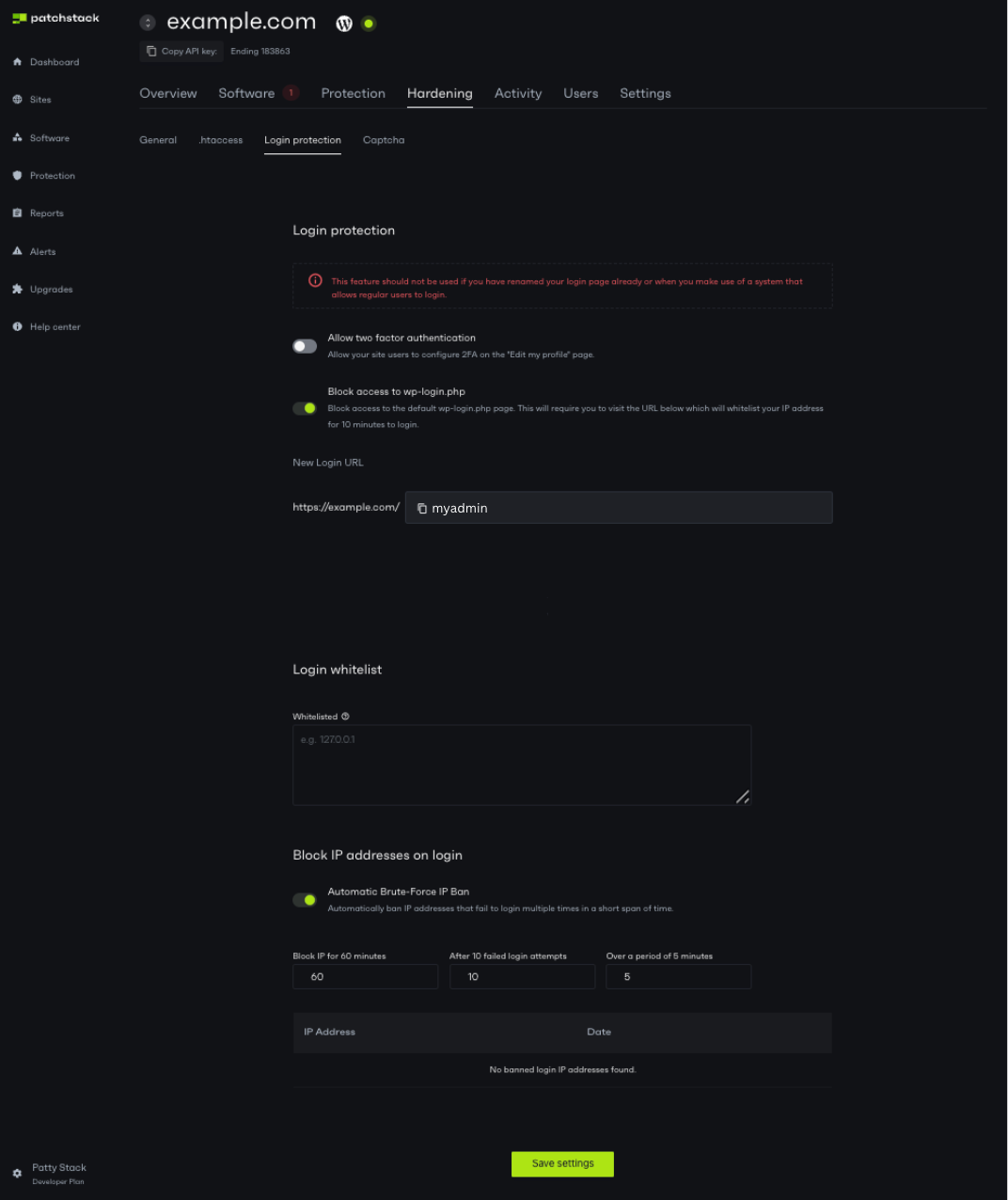
On the Login protection subpage you can:
- Block access to default /wp-admin page and set up a custom login URL
- Ban IPs that fail on multiple login attempts
- Enable WordPress users to set up the 2FA from WordPress profile page
- Add IP addresses to WordPress login whitelist
- Block certain IP addresses from being able to log into WordPress
How our custom login URL feature works
Section titled “How our custom login URL feature works”Visiting your custom login URL temporarily allows your IP to access the normal WordPress login routes. It does not replace your password or 2FA. This temporary access list is separate from the IP whitelist used by login bans. Visitors who are already logged in are redirected to the current site’s WordPress dashboard.
Example usage:
Section titled “Example usage:”Let’s say you enter “myadmin” to the New URL field.
To log in to your WordPress admin panel, you need to:
- First visit your secret URL (for example yourdomain.com/myadmin)
- Your IP gets whitelisted
- You can now log in from the regular yourdomain.com/wp-admin again
- Other visitors must first visit the custom URL before using the normal login route
Failed-login IP bans
Section titled “Failed-login IP bans”The Ban IPs that fail on multiple login attempts setting is off by default. When enabled, its defaults are 10 failed attempts over 5 minutes, followed by a 60-minute ban. These correspond to patchstack_block_bruteforce_ips and the patchstack_anti_bruteforce_* options.
The ban is checked on the login page and when a login reaches WordPress authentication, including frontend forms. IPv4 is counted per address; IPv6 is counted per /64 so changing addresses within the same subscriber network does not reset the limit. Logging activity or uploading failed-login audit events is not required for enforcement.
The login IP whitelist exempts matching addresses from this ban. It accepts one address, IPv4 wildcard/range, or CIDR per line. It does not exempt an account from 2FA. The separate IP block list can still block a whitelisted address.
Two-factor authentication
Section titled “Two-factor authentication”Enabling patchstack_login_2fa makes enrollment available in the WordPress user profile; it does not automatically enroll every user. An enrolled user must provide a valid authenticator code when 2FA is required. Disabling or replacing enrollment requires proof from the current authenticator. An administrator can also reset enrollment from the site’s Users page in Patchstack App, subject to the multisite permissions.
Five invalid 2FA codes cause a five-minute account cooldown. Changing IP addresses does not reset it, and a code already used for a successful login cannot be reused. The IP-ban attempt/window/duration settings do not change this account limit.
On multisite, the WordPress user account and its 2FA state are shared. When a login requires 2FA, its attempt count and consumed codes apply across subsites and networks. Existing authenticator enrollment from older plugin versions is migrated automatically; users do not need to scan a new QR code solely because of the upgrade.
See WP options for the option names, defaults and storage scopes.
Supported authentication paths
Section titled “Supported authentication paths”CAPTCHA, the 2FA code throttle and the login IP ban are separate controls. They apply when the relevant feature is available and enabled, with valid CAPTCHA keys or an enrolled authenticator where required.
| Control | Covered area | Outside this control’s coverage |
|---|---|---|
| Login CAPTCHA | WordPress wp-login.php login and WooCommerce forms processed through woocommerce_process_login_errors | XML-RPC, REST/API authentication and other plugins’ custom login forms |
| Registration CAPTCHA | WordPress registration, public multisite wp-signup.php signup and WooCommerce forms processed through woocommerce_process_registration_errors | Programmatic user/site creation, admin-created accounts and other plugins’ registration forms |
| Lost-password CAPTCHA | Anonymous WordPress and WooCommerce lost-password form submissions | Password-reset requests made through other integrations and administrator-initiated resets |
| Comment CAPTCHA | Anonymous WordPress comment submissions with comment CAPTCHA enabled | Logged-in comments and other plugins’ independent submission systems |
| 2FA account throttle | Patchstack’s own authenticator-code checks for enrolled accounts when its 2FA policy applies, including login and enrollment changes requiring the current code | Another provider’s OTP/MFA codes, or authentication that never invokes Patchstack’s 2FA verifier |
| Optional login IP ban | Failed logins received through WordPress’s wp_login_failed hook, with enforcement on the login page and the authenticate filter | Provider-native authentication that bypasses those hooks, general API rate limiting and signup/reset-request quotas |
A custom frontend login or an XML-RPC password login can still invoke WordPress authentication, so Patchstack 2FA or the enabled IP ban can apply even though that path has no Patchstack CAPTCHA. Application passwords, API keys and third-party identity providers have their own authentication flows; the CAPTCHA setting is not a switch that adds an interactive challenge to every credential check.
The fixed five-attempt 2FA cooldown limits Patchstack code verification. It is not a site-wide throttle for requests, CAPTCHA tokens, password-reset emails or another plugin’s challenges. Login IP bans are opt-in and have their own threshold, window and whitelist.
When reporting a security issue
Section titled “When reporting a security issue”These coverage boundaries are intentional so unsupported integrations keep working. A missing CAPTCHA on an unsupported form, or the absence of a general API throttle, does not by itself demonstrate a bypass of a configured Patchstack control.
Include the enabled settings, account enrollment where relevant, and the exact form, hook or authentication flow in a report. Show how a covered protection is defeated or how unauthorized access is gained; the coverage table does not exclude reports that demonstrate such an impact through another entry point.